Redsys
Redsys is the primary technological backbone for the country’s digital payment ecosystem. It isn't a bank itself, but rather a "payment processor" or "gateway" that nearly every Spanish bank uses to handle transactions.
How to install
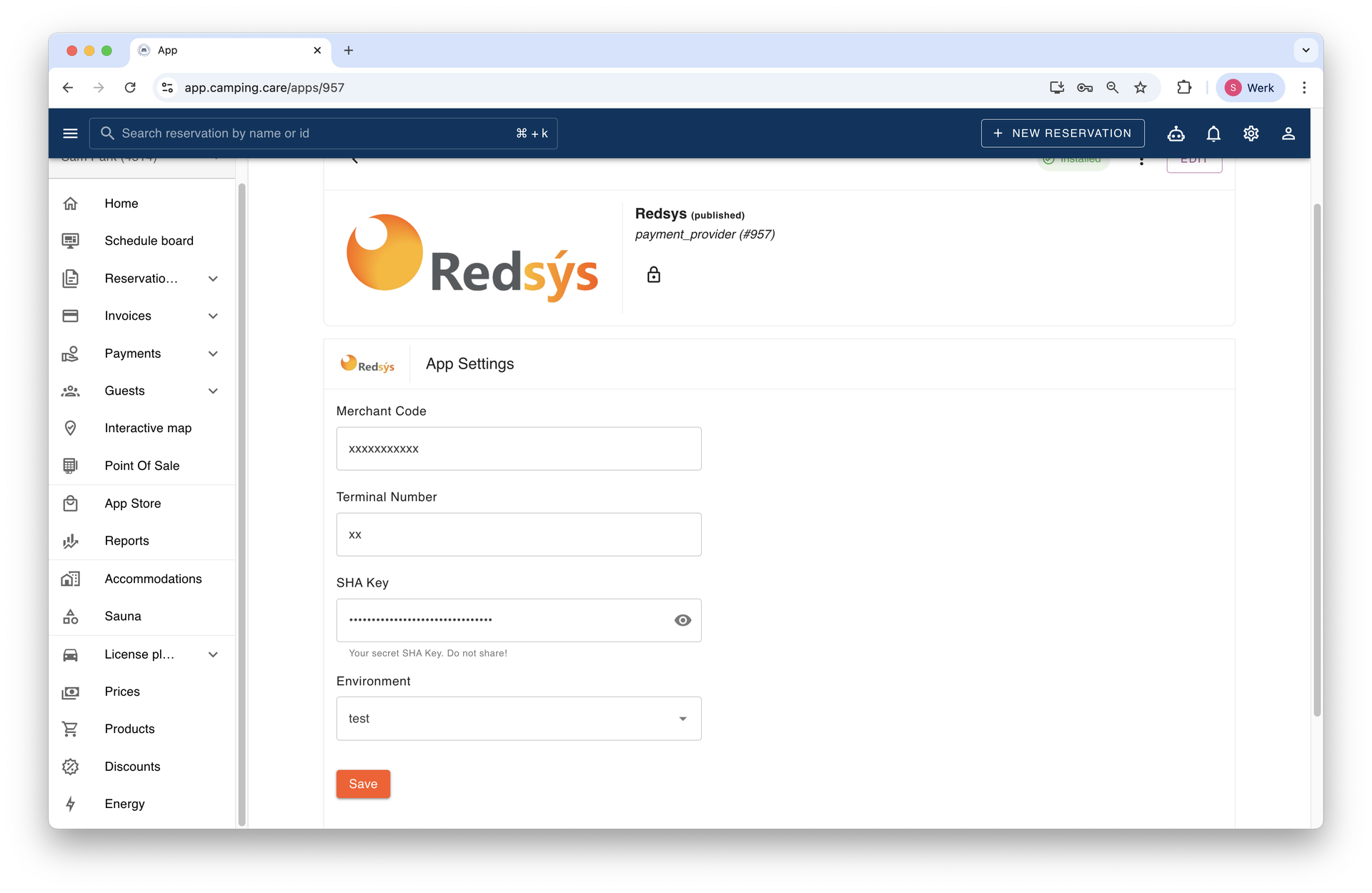
To get started, you will need your credentials from your bank's Redsys portal. Please ensure you have the following:
- Merchant Code (FUC): Your unique business identifier.
- Terminal Number: Usually 001 by default.
- SHA-256 Key: This is your "secret" signing key.
Steps to install
- Navigate to the Redsys App within Camping Care.
- Click Install in the top right corner.
Enter your credentials and select the appropriate Environment:
Test: Use this if you are using a Redsys sandbox account to simulate transactions.
Live: Use this for real transactions and actual payments.
Click Save.
Setup
Once the app is installed, navigate to the Providers & Methods settings page to finalize your setup:
- Select Redsys from the provider dropdown.
- Toggle the payment methods (e.g., Visa, Mastercard, Bizum) that you wish to display on your checkout page.
Pin terminals
As Redsys does not offer cloud based pin terminals, we are not able to connect them to our system in a cost effective way. Therefore you need to add terminal (In-person) payments manual to our software.
Making test payments
Before going live, use the Redsys test environment to verify your configuration. This ensures that the integration functions correctly without moving any actual funds.
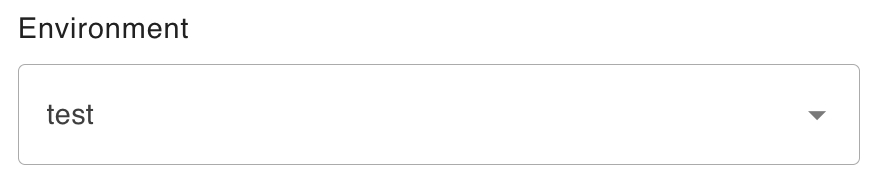
- Set the environment to test: Inside the Redsys app, select "test" in the environment selection, then save.
- Create a Test Reservation: Generate a new booking using "dummy" or test guest information.
- Initiate Payment: Navigate to the Guest Page for that specific reservation and start the payment process.
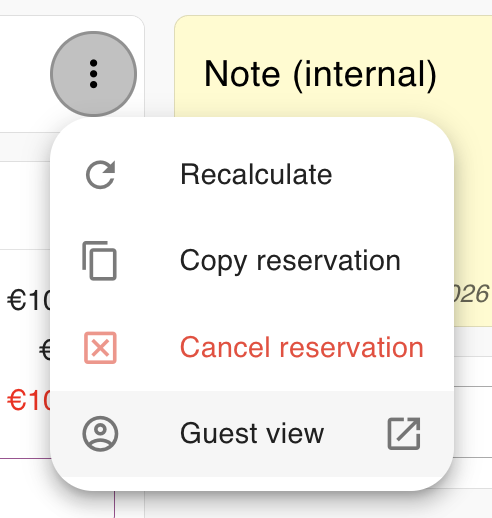
Simulate the Transaction: You will be redirected to the Redsys Payment Simulator.
- Note: Use a test card number provided by Redsys.
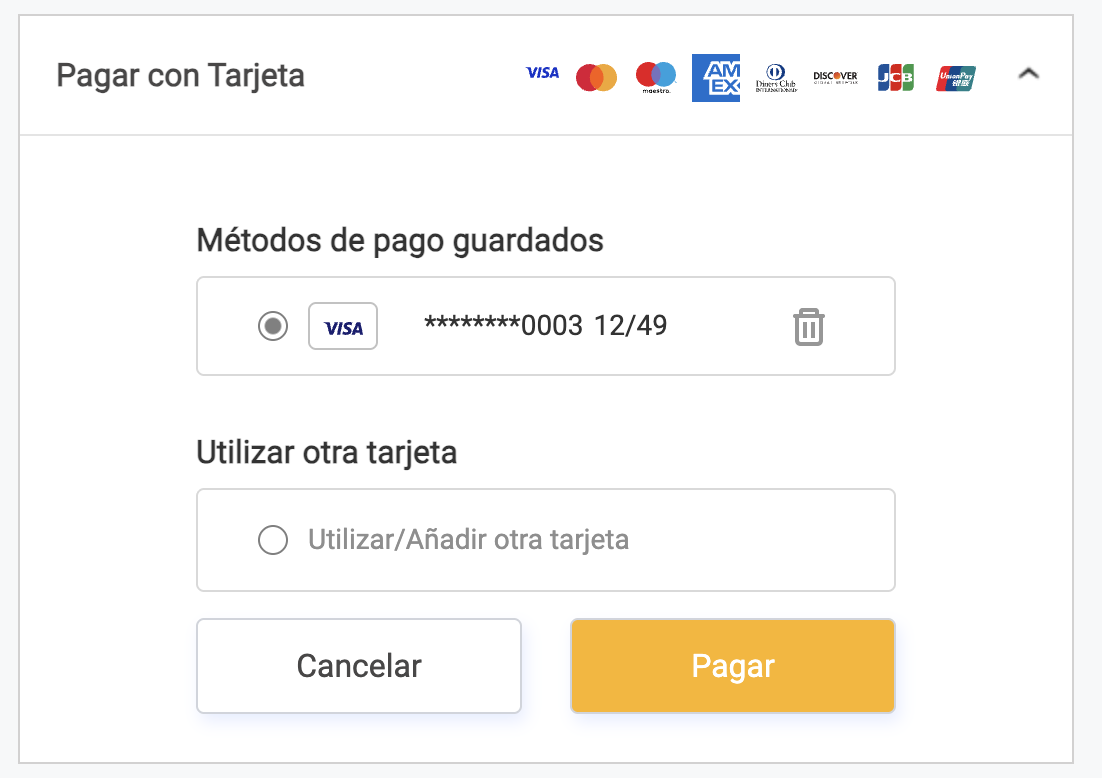
- Note: Use a test card number provided by Redsys.
- Authorize the Payment: Follow the prompts in the simulator to set the transaction status as Completed/Successful.
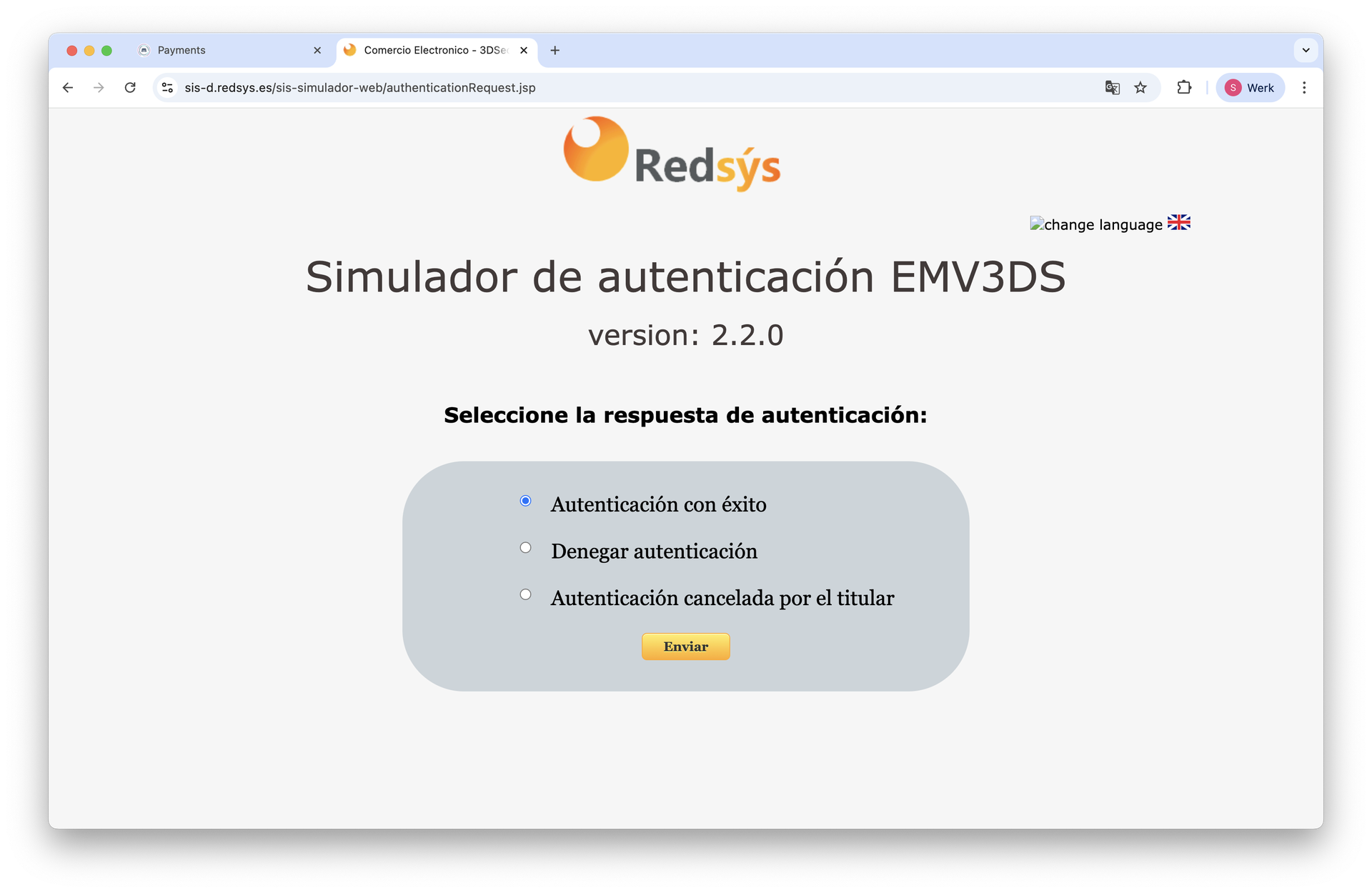
An example of the payment simulator, this screen can look different for you! - Verify the Result: You will be redirected back to the reservation's Guest Page, where the payment should now be automatically recorded and reflected in the balance.
Once completed and no errors happened, you are good to go for live payments!